
Sign in to your HappyKava dashboard and Home now tells you what to do first. Over August it was rebuilt, along with the pages around it.
What needs attention, then everything else
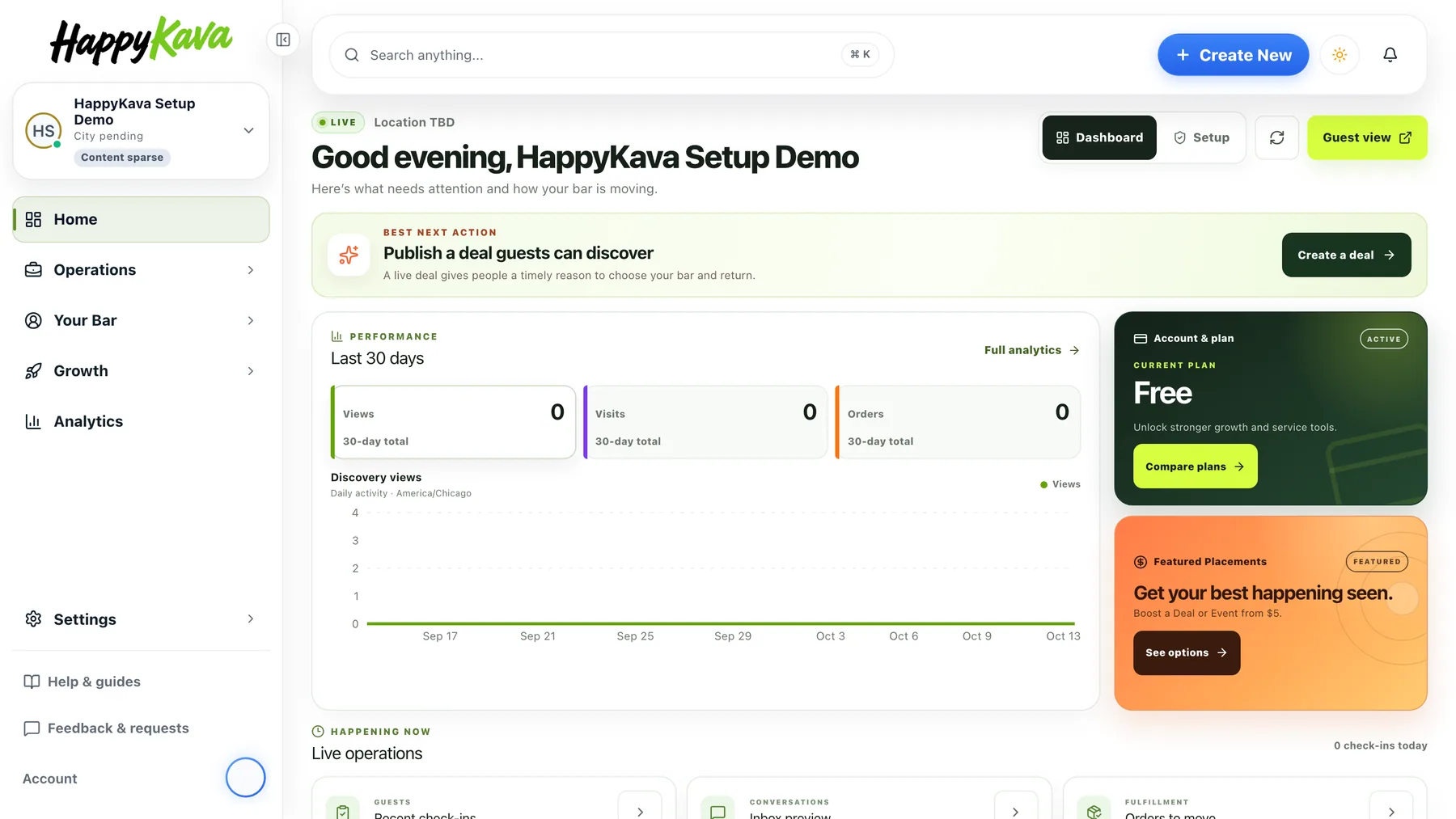
Home greets you by bar and leads with the one thing that needs attention, such as unread guest messages, with a button to deal with it. Below that: Performance for the last 30 days (views, visits and orders, each against the period before, with a daily chart and a link to full Analytics), your Account & plan, Live operations (recent check-ins, an Inbox preview and orders to move) and What guests see (your profile photo, featured deal and next event). The Setup view keeps a new bar's three essentials in sight: a deal, a menu and photos. Arrange Home your way: start from a curated layout, then reorder, resize or collapse the widgets. Your layout is saved for you, per bar.
Hubs instead of tab juggling
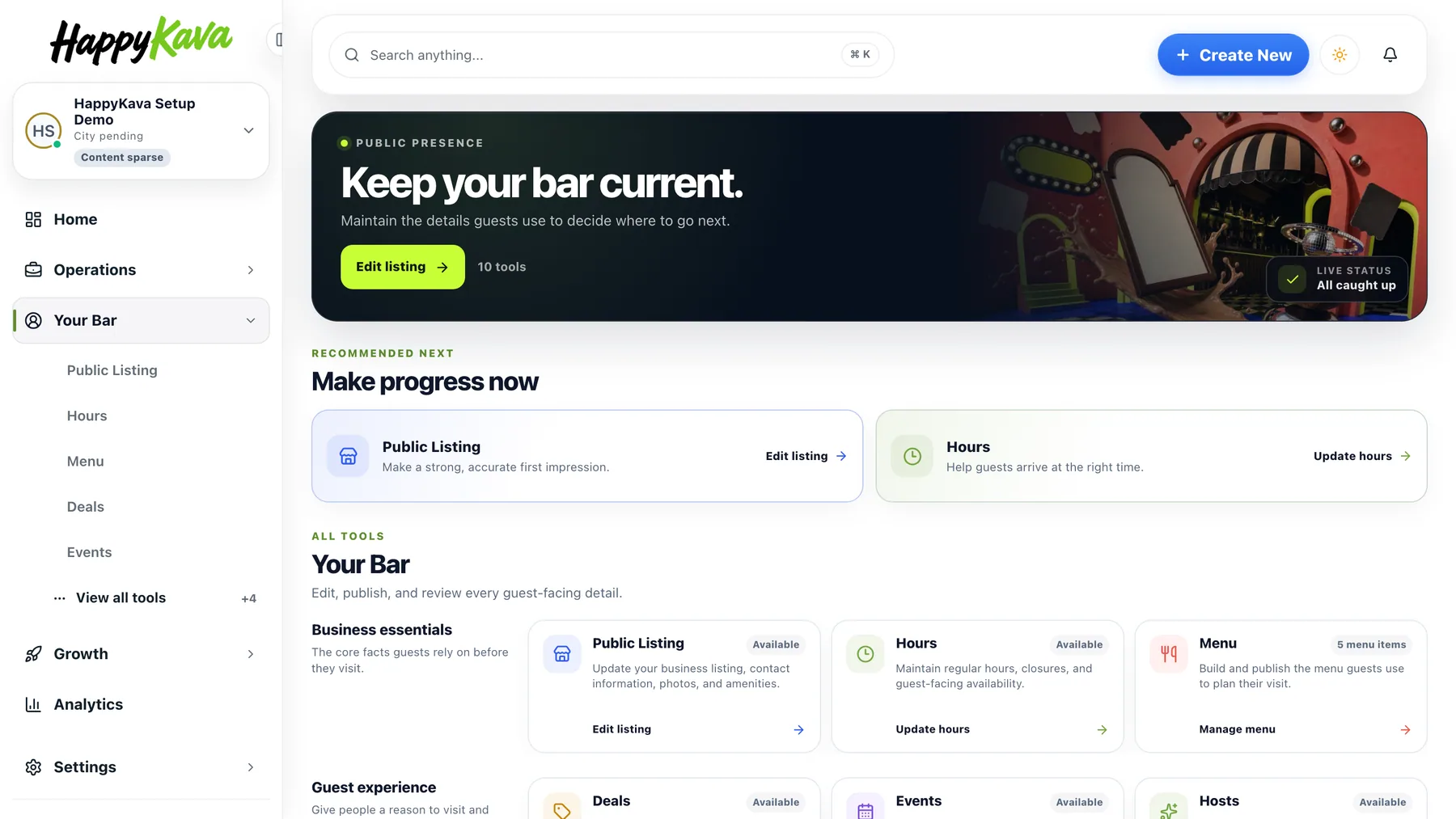
The sidebar shows five destinations per workspace. Open Operations, Your Bar or Growth and the hub page shows live status, the next recommended steps and every tool grouped by what you are trying to do, with View all tools when there is more. The Manage page, your list of locations, starts with search and your bars, with the portfolio tools under them.
Browser notifications
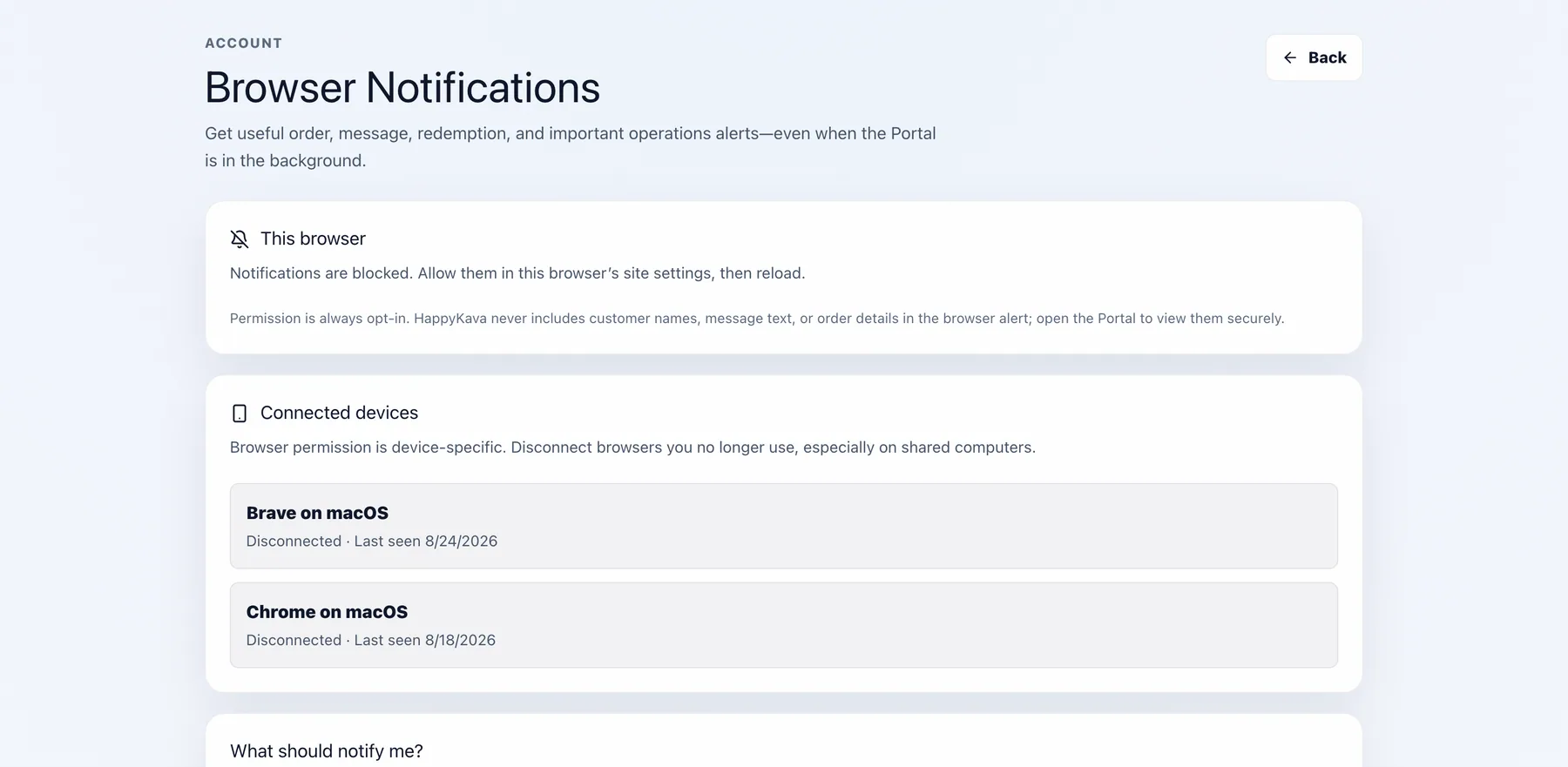
Under Account › Browser Notifications, turn on alerts for this browser and choose what should notify you: new and changed orders, new guest messages, new or pending redemption requests, important delivery and operations issues, and internal group messages. Pick a preset (Shift essentials or Everything important) or go custom. The bell in the header keeps the history.
Also improved
- The sidebar stays put while you scroll.
- A Help button at the bottom right opens the walkthrough for the page you are on.
- Orders moves above Inbox in the sidebar while pickup or delivery is on.
- Resolved and expired notifications move to History on their own.
- The Events widget is now an agenda.
- The light theme uses a white canvas.