
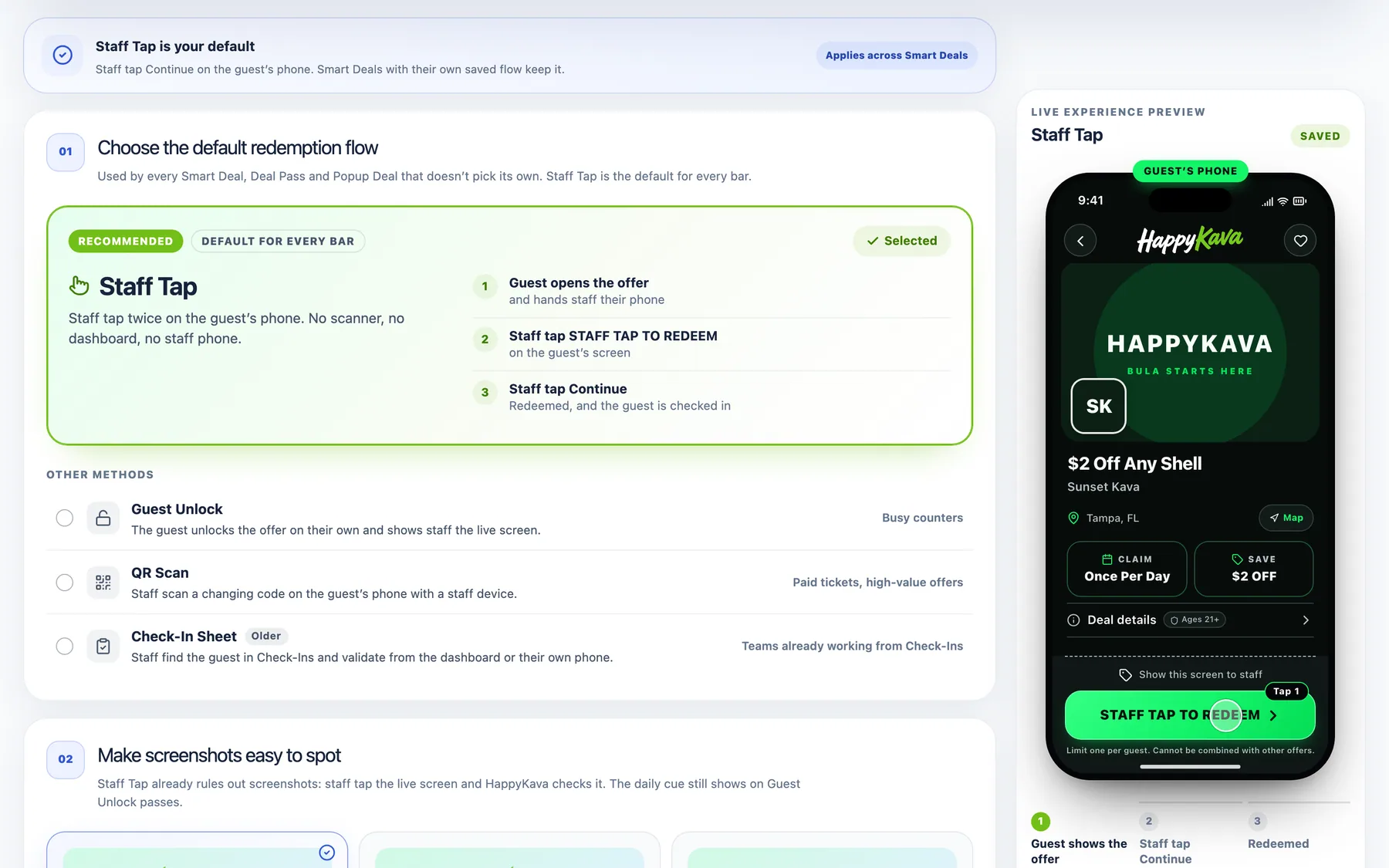
Staff Tap is the simplest way to redeem anything at a kava bar: the guest opens the offer, hands their phone over, and staff tap twice. Now it's the clear first pick everywhere you set up a Smart Deal, a Popup Deal, a Pass or Always Happy Hour. And free RSVPs got the same trick for checking in at the door.
Why we built it
Staff Tap was already the default for most bars, but you'd hardly know it. The settings showed a card called Staff Required, and the two-tap version was tucked away inside it. Worse, a Popup Deal set to staff confirmation could quietly end up on the older Check-In Sheet flow, so staff were hunting through a list instead of tapping a phone.
At the door it was a similar story. Guests who RSVP'd on the website, without the app, had a QR code and that was it. If nobody had a scanner handy, there wasn't a good plan B.
One picker, Staff Tap first
Every redemption picker in the dashboard now looks the same. Staff Tap sits on top, marked Recommended, with its three steps spelled out: the guest opens the offer, staff tap STAFF TAP TO REDEEM, then Continue. Guest Unlock, QR Scan and the Check-In Sheet are still right there below it if they suit you better. Beside the picker, a phone shows exactly what your guest will see.
RSVPs check in with two taps too
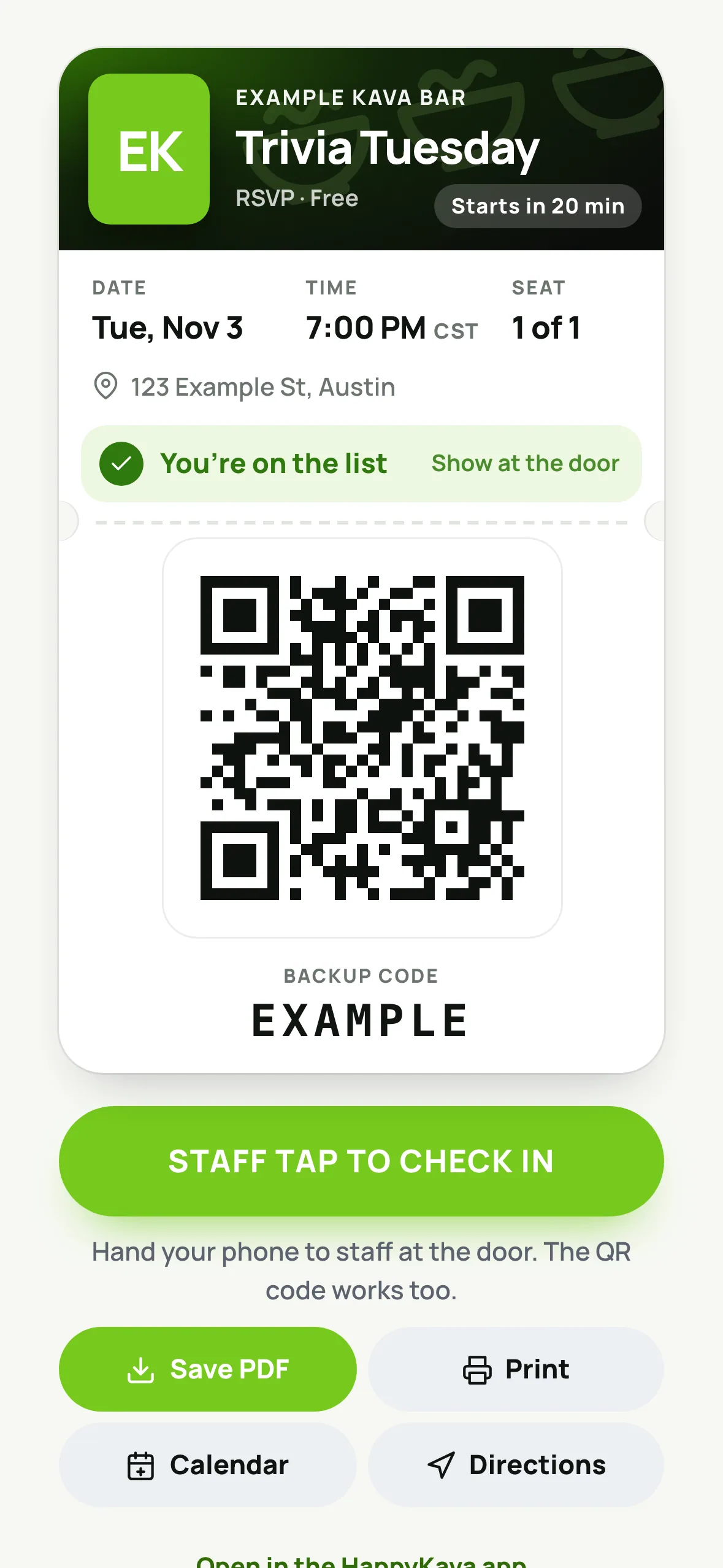
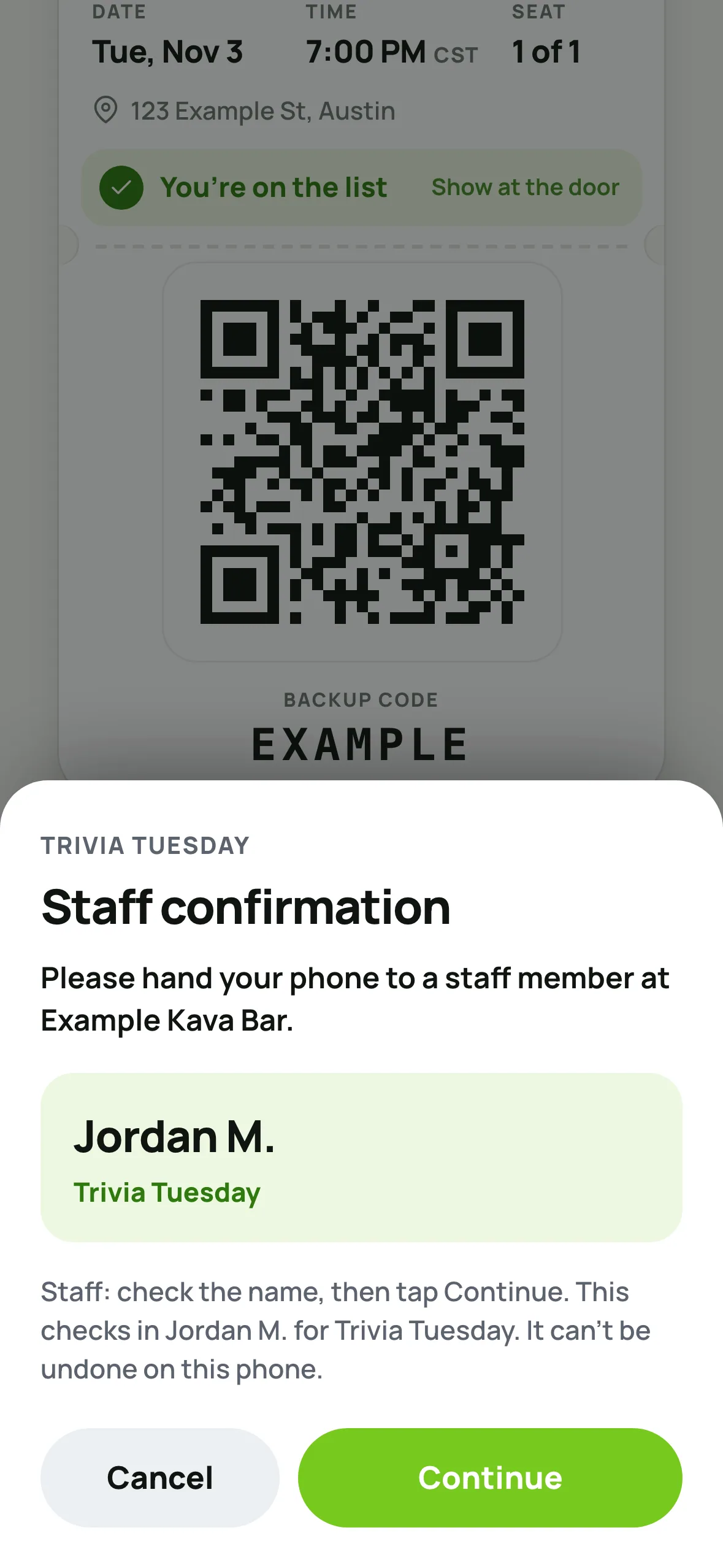
A free RSVP's ticket page on happykava.app now has a big STAFF TAP TO CHECK IN button under the QR code. The guest hands their phone over, staff check the name and tap Continue, and the ticket flips to "You're in." The QR code still works for anyone who'd rather scan. The HappyKava app gets the same button on its tickets in the next app update.
A door list in the dashboard
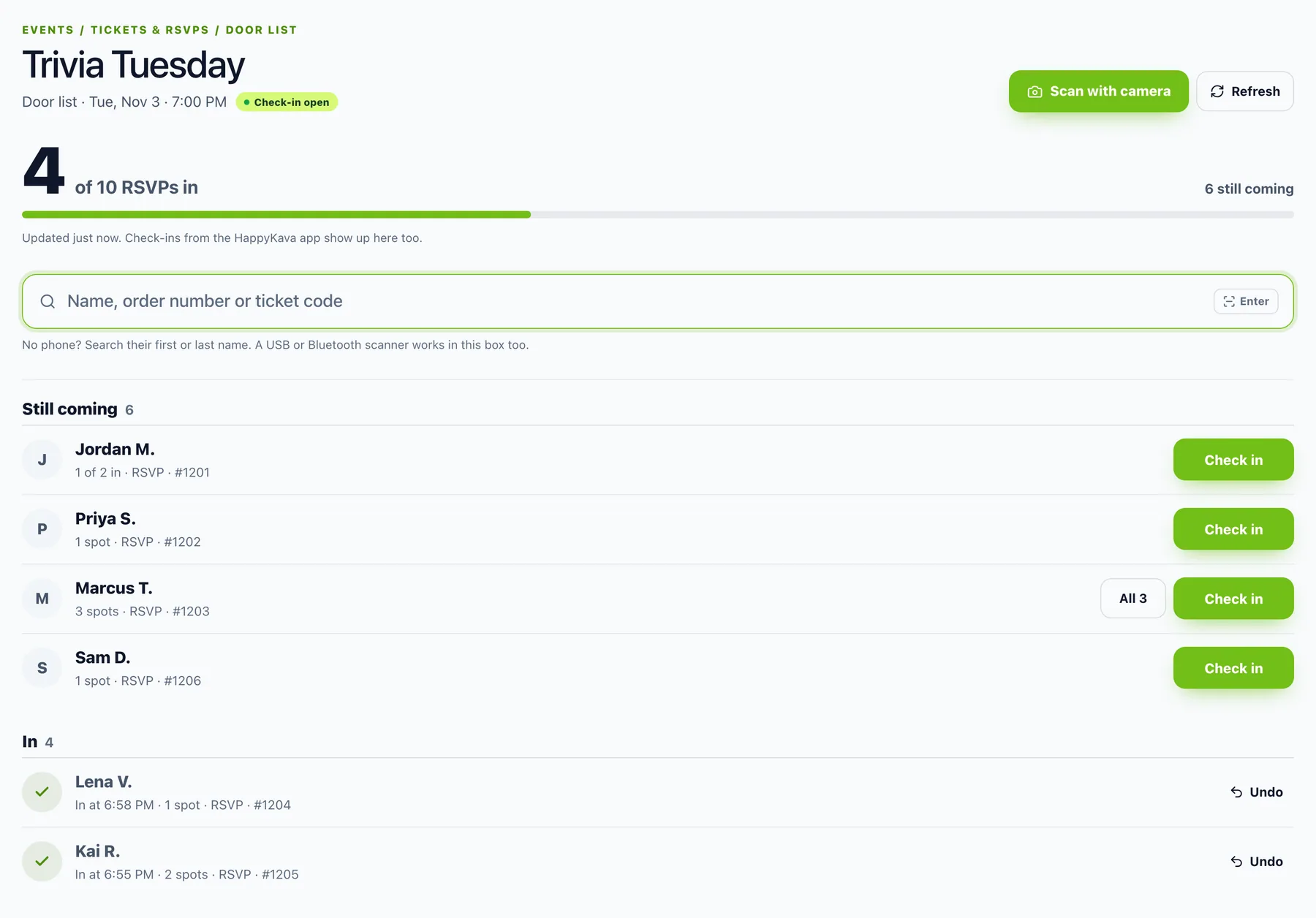
Every ticketed event and RSVP now has a door list. Search a name, an order number or a ticket code, tap Check in, and watch the count climb. A USB or Bluetooth scanner works in the search box, and in Chrome you can scan with the laptop camera. Made a mistake? Undo is right there.
Where to find it
- Redemption: Settings › Smart Deals › Guest Verification, or the Smart Deal you're setting up.
- Door list: Events › your event's tickets › Door list. On the day of the event, Check-Ins links to its door list too.
- Guests: open your RSVP at the door and hand your phone to staff.
Also improved
- Always Happy Hour recommends Staff Tap and shows its own Redeem preview.
- Popup Deals set to staff confirmation use Staff Tap again, not the Check-In Sheet.
- The door list works from 12 hours before an event until 6 hours after it ends.
- Check-ins made in the HappyKava app show up on the dashboard door list too.